 NabyScape
NABYSCAPE · THE GUIDE
Get a little closer.
From your first hover to your own layout. Find a topic, learn the controls, and make the island work for you.
This guide includes the latest source updates. Published downloads can lag behind source; read the notes on the latest GitHub release. The embedded film retains its v2.10 provenance.
No matching topics. Try a shorter search, or clear the search to see the full guide.
GET STARTED
Install & first steps
New installations use Daily Notch: 400 × 41 closed island, 526 px panel, 447 × 207 hover, dot navigation and 400 ms motion. Clipboard capture, startup and download watching stay opt-in. Existing installations retain their preferences. Download the default layout to import it deliberately on an existing installation.
Check the release requirements for your Windows architecture. Current source targets Windows 10 build 19041 or later; native materials and speech engines have separate requirements. The self-contained downloads include the .NET runtime. You need no SDK or GitHub account to run the app.
- Download NabyScape-win-x64-Setup.exe and run it to install for your Windows user.
- For portable use, download the Windows x64 ZIP, extract the whole archive, then run NabyScape.exe.
- Hover over the island at the top of your screen. Click to open the full panel.
- Open Settings from the island or the system tray. Changes save automatically.
The installer is currently unsigned. Download from the official repository and review its SHA-256 checksums before running. Read the latest release notes.
Start with Windows is optional and off by default. Closing Settings keeps NabyScape running; choose Quit in the tray to exit. Portable use still stores data in your Windows user profile. Uninstall through Windows Settings → Apps → Installed apps; personal content is retained.
Glance. Hover. Open.
| State | What you can do |
|---|---|
| Closed | Glance at artwork or an icon, a title or amplitude waveform, and the clock. A countdown or feedback can take priority. |
| Hover | Preview enabled pages without opening the full panel. Scroll or swipe sideways to change pages. |
| Open | Click for playback, tools and detailed controls. Content scrolls normally. Use a sideways swipe or Shift+wheel to change panels outside text editors. |
The open media panel leaves out the compact header so the same track is not shown twice. Escape goes back or closes. When automatically tucked, hover the remaining edge to reveal the island. Manual Hide removes the entire island.
Detach a preview
Drag its grip, or use Detach as a keyboard alternative, to pull Music, Timer, Focus, Calendar, Notes, Shelf or System onto the desktop. Move, resize or choose Always on top. Closing that window leaves playback or its countdown running. Positions are remembered and clamped onto available screens; detached views do not reopen automatically after restart.
Try the browser state preview ↗ · Watch actual app transitions ↗
Music & audio routing
Choose a Windows media session in Media. Play/pause, previous, next and seeking depend on what that app exposes to Windows; unavailable actions remain disabled.
The waveform follows the selected app across active outputs. A selected Spotify session should not be driven by Discord audio. Mixer rows control individual Windows audio sessions, so one app may have several rows. Choosing an output changes the Windows default output; apps with their own routing preference may keep that device.
What the waveform shows
It shows amplitude history, not frequency bands. It does not record through the microphone or save audio. Bars follow delayed level envelopes with quick attack and smooth release. Quiet fallback motion is optional and decorative; muted sessions settle to a quiet baseline. Reduce Motion keeps the waveform still.
Check a missing or quiet signal
Open Settings → Audio → Live signal to see whether the selected app has an audible meter, is muted, or uses the optional quiet fallback. This display does not change audio or volume. Check that you selected the intended media session and that the app exposes it to Windows.
Choose the closed display
Choose artwork, waveform or no icon; content separately supports Waveform, Live lyrics, Song title or None. Countdown and volume feedback keep priority. The Midnight Notch layout uses artwork plus the compact waveform.
Gestures & shortcuts
| Shortcut | Action |
|---|---|
Ctrl+Alt+I | Open or close the island panel. |
Ctrl+Alt+H | Hide or show the whole island. |
Ctrl+K | Search commands while the island is focused. |
Ctrl+Space | Play/pause from the focused header when cover gestures are enabled. |
Ctrl+M | Choose a media session from the focused header when cover gestures are enabled. |
Escape | Go back or close. |
Global shortcuts are configurable. With artwork gestures enabled, click the closed cover to play/pause, or hold it for 500 ms to choose a session. Buttons keep their normal click actions. Text editors keep ordinary text selection and scrolling.
v2.5.0: the configurable Ctrl+Alt+T toggles a manual tuck latch. A second press returns to automatic rules. Controls adds Always tucked and a 0–12 DIP edge (default 2 DIP), with shortcut duplicate/registration feedback. Manual Hide takes priority. Availability details.
Notes, tasks & everyday tools
Notes & tasks
Notes is one local document shared by the island and the detached view. Use Tasks for small to-dos. Enable Tasks in Content → Hover pages if you want to check them from a preview. Disabling a tool keeps its saved content.
File shelf
Drop files or folders onto the island. Select several and drag them out together. The shelf holds references to up to 40 items, deduplicates paths and handles missing sources. Staging never moves the original. If a file moves or disappears outside NabyScape, its saved reference may no longer work.
Smart clipboard
History is opt-in. Text, links, images and valid HEX/RGB colors get relevant local actions. Review a cleaned link before copying, save an image, or copy a color. Pause or turn off history at any time; turning it off clears stored clipboard history and images. Enabling the Clipboard hover page does not turn on capture.
Timer, Focus & calendar
Start, pause, reset or extend countdowns, and set work/break durations. Views share the same session and retain accurate deadlines across sleep/resume. Focus does not change Windows Do Not Disturb. The calendar stores events you add manually; there is no calendar account to connect. The stopwatch is a v2.5 addition.
Launch, Activities & Keep awake
Save apps, folders and websites as launch targets. Activities are ordered routines of launch targets, Focus and timed Keep awake. Start an activity yourself; none runs automatically after restart. Stop ends the Focus/Keep awake session still owned by that activity. Keep awake can prevent sleep temporarily and optionally keep the display awake.
Clean links
Preview the result of removing recognized tracking parameters before copying. NabyScape does not fetch the page or open the cleaned link automatically.
System readings
Overview groups CPU, RAM, GPU and uptime. Hardware, Network, Storage and Processes have separate tabs. Sampling follows the visible consumers instead of scanning every kind of information for every view.
- GPU readings depend on Windows performance counters. Missing readings are labeled unavailable.
- Temperature and fan readings need an already running supported LibreHardwareMonitor/OpenHardwareMonitor WMI provider. NabyScape installs no sensor driver.
- Battery controls appear on devices with a battery. Brightness feedback needs supported Windows events; there is no brightness slider or DDC/CI support.
- Reduce Motion disables continuous animation. WPF callback cadence does not prove GPU-presented frame rate.
For measured local v2.4.2 comparisons and their limits, read the performance report. Its capture-machine results are not a promise for every PC.
Make it yours
Start here shows readiness and next steps for Music, AI, Voice, Lyrics and Weather. Run quick setup again to choose Music, Productivity, AI or Custom. Undo in the Settings footer restores the last appearance, layout or widget batch.
Music & sound → Closed media display offers Waveform, Live lyrics, Song title and None. Long lyrics crossfade in measured phrases. Lyrics use available track metadata and playback timing, including compatible YouTube Music and Apple Music sessions. Availability varies by track. Widgets & tools → Feature usage offers Essentials or Custom and explicit background switches.
Press Ctrl+F in Settings to find an option. Under Position & size → Move & resize, drag the screen map, enter a precise position, or choose Center. In Widgets & tools, drag a grip to reorder; Alt+Up / Alt+Down works from the keyboard. Hover shows all active widgets by default. Follow-cursor mode can slide between monitors; Reduce motion disables the slide.
Ambience has its own category. Choose one color or a cover blend, tune the light shape, and optionally light the closed dock. Tucked always stays black. Weather has city search and units; no GPS permission is requested.
Choose a notch or floating pill, then set sizes, spacing, surface colors, opacity, typography and motion. Keep the tools you use. Changes save automatically and the preview follows the setting you are exploring.
| Category | What you will find |
|---|---|
| Appearance | Shape, surface and control colors, outlines, bold titles, labels, motion and frame policy. |
| Layout | Display and position, independent closed/hover/panel dimensions, spacing, layout import/export. |
| Content | Panel order, individual tools, hover pages and opt-in clipboard capture. |
| Controls | Hover timing, swipes, cover gestures, detach, drag reveal, shortcuts and automatic tucking. |
| Audio | Closed media display, waveform behavior, live signal, volume/brightness feedback and mixer access. |
| System | Clock format, seconds/date and available monitoring details. |
| Launch | App, folder and web shortcuts, their presentation, and Activities. |
| Application | Start with Windows, local storage and app information. Updates, notifications and reset controls require the v2.5.0. |
Use the look from this site
- Download Midnight Notch. Export your current layout first if you want an easy way back.
- Open Settings → Layout → Layout profile → Import layout.
- Choose the JSON file. Changes apply automatically; adjust from there.
The preset uses a 324 × 38 closed notch, 500 × 202 hover, a 546 px panel, black surface, white accent, artwork plus waveform, bold headings and 420 ms transitions. Dimensions are logical pixels and adapt to available space.
Layouts include visual/interaction preferences, tool visibility and order. They exclude Notes, clipboard capture/history, launch/activity targets, startup and saved window positions. Importing does not enable clipboard capture. The format remains luma.layout.v1.
The stable island's glass uses WPF gradients, reflections and artwork tint. It does not capture or blur the desktop. Native Settings materials are a separate v2.5 feature.
Privacy & local data
No NabyScape account is required. Preferences, notes, tasks, timers, events and shortcuts stay on your device. Clipboard history is opt-in. Optional AI uses your configured provider; microphone listening, wake word and screen sharing require explicit choices. Lyrics sends track metadata to LRCLIB, weather requests your selected city, and updates contact GitHub. The marketing site has no analytics or accounts.
Where data lives
| Version | Local content and preferences |
|---|---|
| Legacy v2.4.2 | %LOCALAPPDATA%\LumaIsland\ |
| v2.5.0 | %LOCALAPPDATA%\NabyScape\, with migration from the legacy LumaIsland folder. |
The per-user installation path remains %LOCALAPPDATA%\Programs\LumaIsland\ for compatibility. Portable use also saves data in the Windows user profile. Uninstall retains personal content.
Migration & preference reset — v2.5.0
First launch copies legacy data into staging, validates JSON and clipboard-image references, then activates the copy. The original legacy folder is preserved. If both data folders exist, NabyScape uses its own folder and asks you to review the legacy copy. A failed migration uses the legacy folder with a warning; resolve its reported permissions or invalid file and restart.
Application → Reset preferences can reset a category or all preferences, or restore the last preference backup. A confirmation describes the change. A backup is required before reset. Reset/restore preserves startup, clipboard capture/history, shortcuts, Notes, Tasks, shelf, calendar and activity targets. Restore applies preference categories; it cannot re-enable clipboard or startup from an old backup.
AVAILABLE NOW · V2.5.0
What is new in v2.5
Included in v2.5.0. The installer and portable downloads include these features, independent hover pages, reversible tuck motion and clearer mixer icons.
Native materials for Settings
Appearance adds Solid, Simulated glass, Native Mica and Native Acrylic for the Settings window. Native options need Windows 11 build 22621 or later. High contrast, disabled transparency, energy saver, remote sessions, unsupported APIs or a failed DWM call fall back to Solid with a visible reason. Windows determines the final appearance. The island keeps its existing shaped simulated glass.
Updates & notification routing
Application → Updates checks official stable releases, verifies compatible downloads and offers a separate explicit install/restart action. This does not publish a release or remove unsigned-installer warnings. Application → Notifications routes NabyScape's Timer, Focus, Downloads, Updates and failure notices to Notch, Windows, Both or Off. Notices expire; this does not read other apps' Windows notifications.
Download activity
Off by default. It watches one selected folder for readable files with stable size and infers arrivals. It cannot guarantee a browser has finished downloading. Originals stay in place and the folder path is excluded from layout exports.
Stopwatch & follow cursor
Focus → Stopwatch provides Start, Pause, Resume and Reset, shares its persisted session with hover/detached views and counts elapsed sleep time. Layout → Display adds Primary, Selected and Follow cursor. Follow waits 250 ms on another display and defers during island interaction or manual hide. Detached views stay where placed.
Reset, migration & manual tuck
v2.5 adds the preference backup/reset and LumaIsland-to-NabyScape migration described in Privacy & local data, plus the manual tuck latch, Always tucked and adjustable edge described in Gestures & shortcuts.
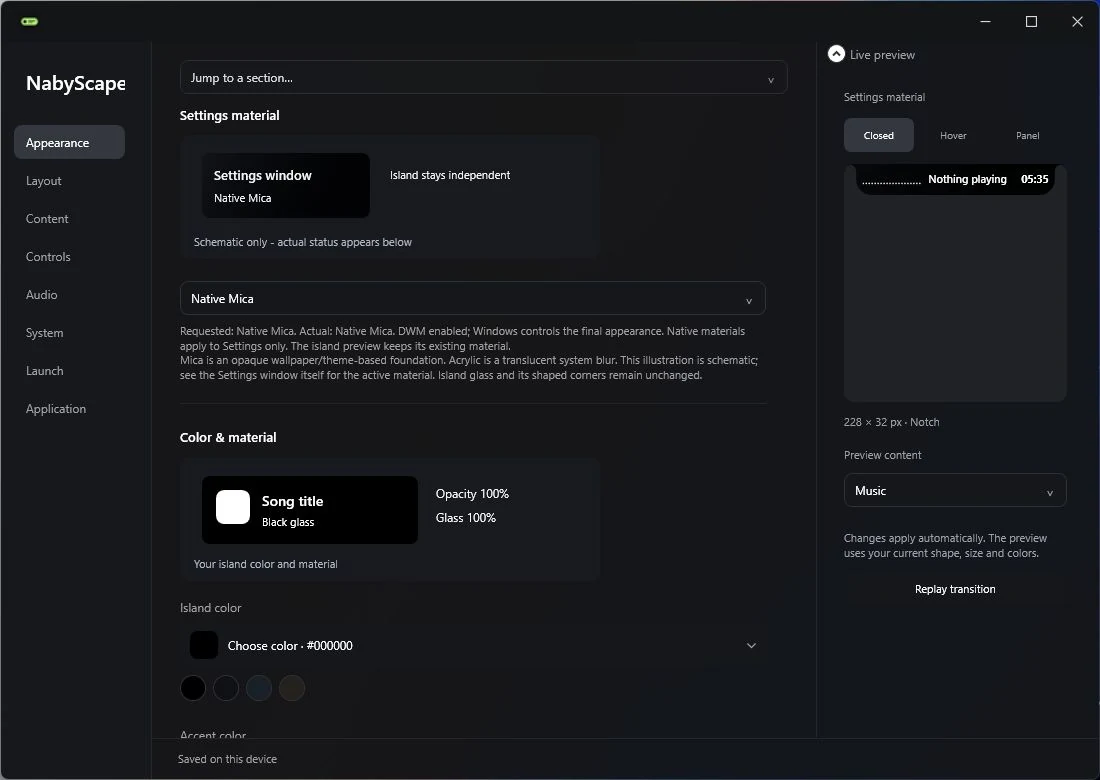
Native backdrop captures and local package checks are documented in the integration report. These captures do not establish installer behavior, code signing, physical mixed-DPI relocation, hotplug or hardware sleep. API success is not a measurement of blur strength or GPU-presented FPS.
Troubleshooting
I cannot find the island
Try the configurable show/hide shortcut (default Ctrl+Alt+H), or open the tray menu. If automatic tucking is enabled, hover the remaining top edge. Check Layout for the selected display and Controls for fullscreen/maximized behavior. Choose Quit from the tray before intentionally restarting the app.
Media controls or the waveform are missing
Start playback in an app that exposes Windows media sessions, then choose that session in Media. Some apps do not support seeking or skipping. Check Audio → Live signal for muted, unavailable or quiet fallback state. See audio routing for output-specific behavior.
A system reading is unavailable
GPU counters and optional sensor providers vary between machines. Temperature/fan data needs a supported running WMI provider; the app installs no sensor driver. Brightness and battery controls require supported hardware/events.
A shortcut does not work
Check the configured combination in Controls and whether another app uses it. Command search (Ctrl+K) requires island focus; cover shortcuts require a focused header and enabled cover gestures. v2.5 additionally reports duplicate global combinations and registration conflicts.
I enabled a Clipboard preview but no history appears
The hover page and clipboard capture are separate preferences. Capture is opt-in. Enable it deliberately if you want local history; disabled capture does not collect content. Pause temporarily or turn it off to clear saved history and images.
Windows reports an unsigned installer
The current installer is unsigned. Confirm the official repository, version and SHA-256 checksums before deciding whether to install. Portable ZIP is also available. See the release and signing notes.
My layout or Settings material looks different
The original gallery uses the downloadable Midnight Notch layout; the Settings capture is labeled v2.5. Import it from Settings → Layout. Native Mica/Acrylic apply to the v2.5 Settings window, require a supported Windows build and may fall back to Solid with a reported reason. WPF-only screenshots do not establish native blur.
Still stuck? Open an issue with app version, Windows version and steps to reproduce. Remove personal content before sharing screenshots or files.
Build & contribute
Use Windows 11 x64 with .NET SDK 10. Clone the repository and run its build entry point:
git clone https://github.com/BillyNabil/nabyscape.git
cd nabyscape
.\build.ps1
The script publishes the standalone app and installer, includes dependency notices and runs logic checks. Development artifacts are available from the Windows build workflow; downloading workflow artifacts requires a GitHub account.
See the developer guide, release workflow, capture provenance and roadmap. NabyScape is free under the MIT License.
Back to the top ↑